
Higgsfield Genjutsu: what it is and how to use it
Higgsfield Genjutsu is a video tool that changes part of a clip you already have and keeps the rest as filmed. It has two modes: Motion Transfer keeps the movement and camera and rebuilds the scene around them, and Object Swap replaces one thing, like a product, an outfit or a person. You upload one video of 4 to 30 seconds, add up to 30 reference images and pick a preset.
Genjutsu (people also type it genjustu or gen jutsu) puts two jobs in one place that I've been doing for a while with motion control: making an AI person move exactly like a real take, and switching what's in a shot without filming it again. The tool is new. The thinking behind a good result is the same as it's always been, and that's the part most people skip.
Here's what it does, according to Higgsfield's own pages, and how I'd use it for paid work.
What Genjutsu does
You give it a clip. It can be real footage from your phone or a video you generated. Then you choose a mode at the top of the panel:
- Motion Transfer. Keeps only the motion, the camera and the timing from your clip, then builds a new scene around them from your references: a new person, a new location, a new look. Use it when the performance is the thing worth keeping.
- Object Swap. Changes only the element you pick, such as a person, a product, an outfit or some text. Everything else in the shot stays as it was.
Motion Transfer also has a Style option that redraws the whole video in one look while the motion, camera and framing stay put. Higgsfield lists 20 ready-made styles, from hand-painted cel animation to felt puppet stop motion, or you can build one from your own image.
There's a Motion Library too: trending dances, transitions and viral formats you can pick instead of uploading a clip, split into Higgsfield picks, Community trending and Community new.
How to use Genjutsu, step by step
- Go to Video, then Create Video, and pick Higgsfield Genjutsu in the model picker.
- Choose Motion Transfer or Object Swap.
- Add your source video, 4 to 30 seconds. Upload your own or pick one from the Motion Library.
- Add reference images of the people, products or clothes, up to 30.
- In Motion Transfer, open Style if you want the whole video redrawn.
- Pick a preset. Turn on the prompt and add a short line only if you need more control.
- Set the quality to 480p, 720p or 1080p and generate.
Higgsfield's own advice for better results comes down to four things: a source clip with clear, readable motion, references that match the change (one image for a simple swap, several angles of the same subject for a full rebuild), reference framing close to the source shot, and a preset before any long prompt.
Genjutsu vs Genjutsu Lite
Lite came out on 20 October 2026. It's the faster, cheaper version for the same 4 to 30 second clips. It takes up to 10 reference images instead of 30, outputs at 720p or 1080p, and makes the change on its own with no mode to choose and no Style option. Higgsfield pitches it for Reels, TikToks and Shorts, quick tests and lots of versions of one short video.
The way I'd split them: Lite to try an idea fast, full Genjutsu once you know what you want and need the control.
1. Film the take yourself
Motion Transfer can only keep what's in your clip. If the movement is vague, the result is vague. My AI UGC mini guide works the same way with Kling's motion control: make the face, film yourself on your phone, let the tool put the two together. Film it in your bedroom if you like. Just keep your face clear and well lit.
This is also how you get a movement prompting won't give you. When a brief needs one very specific action, a dance or a gesture the model keeps getting wrong, stop rewriting the prompt. Do it on camera and transfer it.
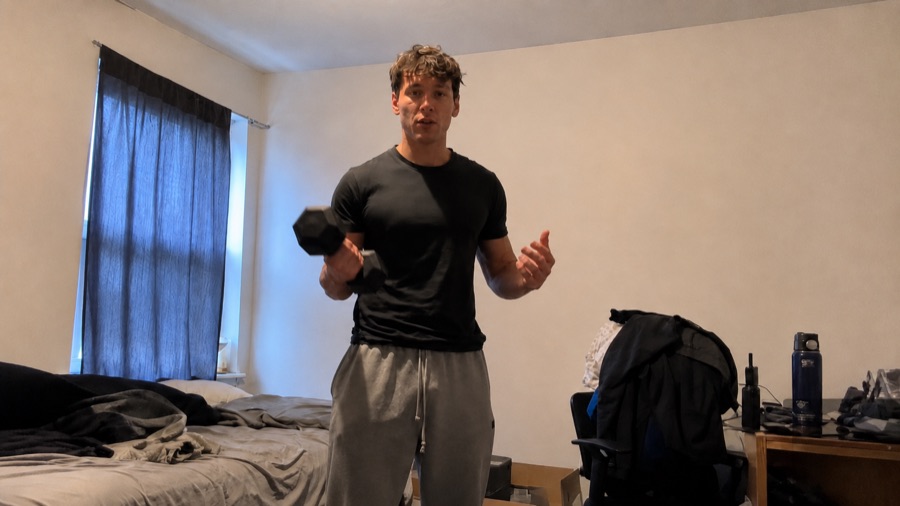
2. Decide the new world before you generate
The tool will rebuild whatever you point it at. Choosing what it should become is your job. Before I touch a transfer, I decide the direction: the location, the light and the look that suit the person and the brand. Then I write it down. The bedroom to film studio guide makes this a step of its own: an AI director reads the frame, says what's making it look amateur and pitches one direction, and only after you approve it does the prompt get written.
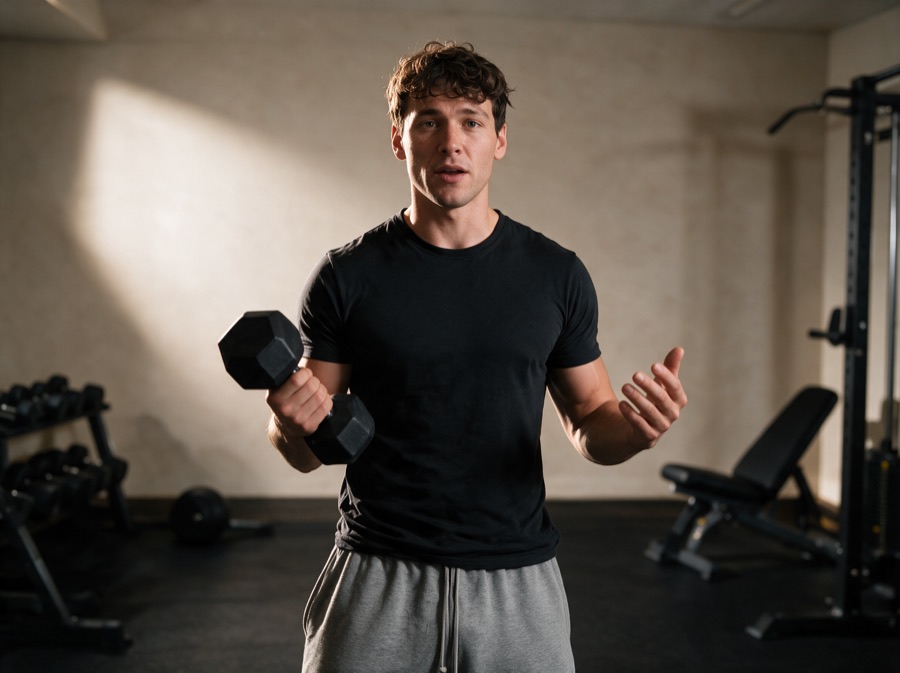
Pick references that agree with each other, so the light, the place and the styling all belong to the same shoot. Where to find aesthetic references covers how to find them and turn them into words.
3. Use Object Swap for versions of an ad
Switching products in a finished clip is what makes this useful to brands. One good take becomes the same ad with a different product, outfit or line of text, and the performance that made it work stays the same. Higgsfield pitches exactly this: one ad adapted for every market.
Plan the swaps like a test. Lock what stays the same, change one main thing per version, and make the first versions properly different, because Meta treats near-identical ads as one ad. How to make 20 ad variations walks through it.
4. Keep one character across every video
Add the same character images as references and they turn up in every result. That's how you run an AI creator or a brand face across a series. Build the character properly first: how to keep a character consistent covers the sheet, and the AI influencer lesson covers how they earn.
5. Make it look filmed, and label it
For UGC, the result should look like a phone in a real room: daylight, everything in focus, no grade on top. Shallow focus and a moody grade read as an ad. The full method is in AI UGC ads that look filmed at home. Higgsfield says Genjutsu outputs can be used on organic and paid channels under its Terms of Use. When an AI person fronts an ad, label it as AI and as an ad.
What it costs
On Higgsfield's own figures for a 15 second clip, checked 2 November 2026: Motion Transfer is 45 credits at 480p, 105 at 720p and 300 at 1080p. Object Swap is a little more. Lite is 96 credits at 720p and 192 at 1080p. If Genjutsu is on your plan's Unlimited list, generations on the website use no credits; the API and MCP always use credits. The exact cost shows on the Generate button before you run it.
So draft cheap. Test the idea at 480p or in Lite, then render at 1080p only once you have the keeper. For how Genjutsu sits next to Seedance, Kling and the rest, see the best AI video generators 2026.
Questions
What is Higgsfield Genjutsu?
It's Higgsfield's tool for changing an existing video. Motion Transfer keeps the clip's movement, camera and timing and rebuilds the scene around it from your references. Object Swap changes one element, like a product, outfit or person, and keeps the rest of the shot as filmed.
How long can a Genjutsu video be?
The source clip has to be 4 to 30 seconds, for both Genjutsu and Genjutsu Lite. Full Genjutsu takes up to 30 reference images and outputs at 480p, 720p or 1080p. Lite takes up to 10 and outputs at 720p or 1080p.
Can I use Genjutsu from Claude?
Yes. Higgsfield says Genjutsu and Genjutsu Lite run through its MCP connector, so you can use them from Claude or ChatGPT, and through its API. Those runs always use credits, even on a plan where website generations are unlimited.
UGC and ad variations are both in Build AI Creative Systems That Win Clients, with the current tool list, alongside how to turn one take into an ad a brand would run and the client who pays for it.